The Cloud Desk · AZ-104 Series · Day 1
Users and Groups in Microsoft Entra ID
Almost everything you configure in Microsoft's cloud — a licence, a sign-in policy, access to a storage account — is handed to a user or a group. This note explains those two objects properly, field by field, so the rest of the series has something solid to stand on.
This is a written reference, not a transcript of the video. It goes further than the Day 1 video does: every screen is broken down, every field is defined, and the terms the video uses in passing are explained here in full. If you are studying for AZ-104, this note covers the Create users and groups and Manage user and group properties items from the Manage Microsoft Entra users and groups objective. Licensing and self-service password reset belong to the same exam objective but are covered in Day 2, so they are only pointed at here.
To follow along you need a tenant of your own and an account holding either User Administrator or Global Administrator. A Microsoft 365 Business Premium trial or an Azure free account is enough. Some features noted below — dynamic membership in particular — need a Microsoft Entra ID P1 licence.
01Where this happens
Identity in Microsoft's cloud lives in a directory, and the directory belongs to a tenant.
A tenant is your organisation's own dedicated instance of Microsoft Entra ID. It holds your users, groups, devices, applications and the settings that govern them. Every tenant gets an identifier (a GUID) and at least one domain name. Nothing in one tenant is visible to another unless you deliberately share it.
The directory is the database inside the tenant where those objects are stored. In practice people use "tenant" and "directory" to mean the same thing, and Microsoft's own screens mix the two. When you read "directory object" it means a user, group, device or application record held in that database.
You can reach the same directory through three different front doors, and this confuses people more than it should:
| Portal | Address | What it is best at |
|---|---|---|
| Microsoft Entra admin center | entra.microsoft.com | Everything identity: users, groups, roles, Conditional Access, external identities. This is the one used throughout the series. |
| Azure portal | portal.azure.com | Azure resources. It contains the same identity screens under Microsoft Entra ID, because it is the same directory. |
| Microsoft 365 admin center | admin.microsoft.com | Day-to-day Microsoft 365 administration — licences, mailboxes, a simpler user wizard. Same users underneath. |
Changing a user in one of them changes that user in all of them. There is one directory; these are three views onto it.
Portal pathMicrosoft Entra admin center → Entra ID → Users → All users
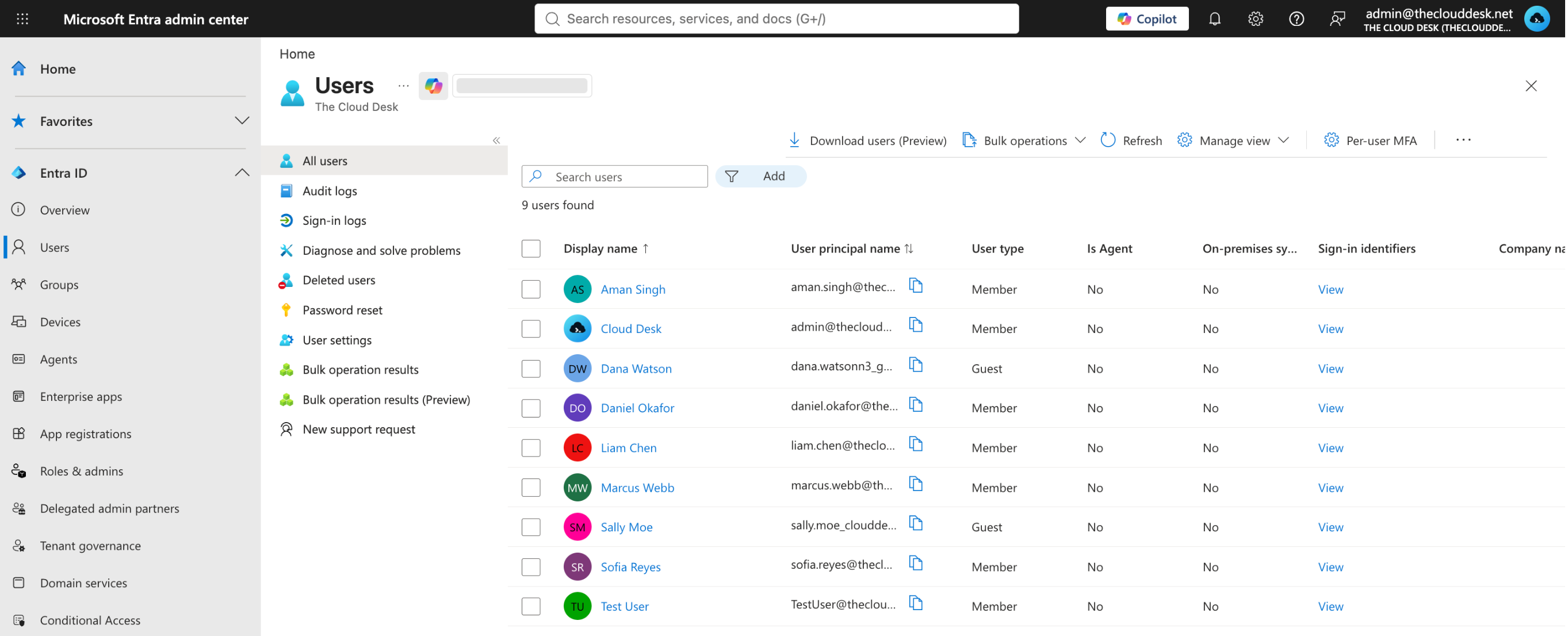
The columns on this list are worth reading once, because they tell you what the directory considers important about a person:
- Display name — the friendly name shown in Teams, Outlook and every people picker.
- User principal name — the sign-in identity. Section 3 pulls this apart.
- User type —
MemberorGuest. See section 6. - On-premises sync enabled — whether this account originated in an on-premises Active Directory and is synchronised up.
Nomeans the account was created in the cloud. - Sign-in identifiers — any alternative values the user may sign in with.
- Company name — a plain text attribute, useful for filtering and for dynamic membership rules.
02The user object
A user object is a record in the directory that represents one identity. It holds the attributes that identify the person (sign-in name, display name, object ID), the attributes that describe them (job title, department, office, manager) and the state that controls them (enabled or blocked, licences assigned, group memberships, roles held).
Three identifiers sit on every user, and they do different jobs:
| Identifier | Example | What it is for |
|---|---|---|
| Object ID | 7f3c…-a91b (a GUID) | The permanent internal key. It never changes, even when the person's name or sign-in address does. Scripts and role assignments use it. |
| User principal name (UPN) | liam.chen@theclouddesk.net | What the person types to sign in. Can be changed. |
| Display name | Liam Chen | What humans see. Has no effect on sign-in or access. |
Users also come from different places, and where an account came from decides where you are allowed to edit it:
- Cloud-only — created directly in Entra ID. Fully editable in the portal.
- Directory-synchronised — created in an on-premises Active Directory and synchronised up by Microsoft Entra Connect. Most attributes are read-only in the cloud; you change them on-premises and let them sync. This is the hybrid identity model, and it is a topic of its own.
- External (guest) — a person from outside your organisation, invited in. Covered in section 6.
03Creating a user, field by field
Portal pathUsers → All users → New user → Create new user
The New user button is a split button. Create new user makes an internal account with a password. Invite external user sends an invitation to somebody who already has an identity elsewhere. This section covers the first; section 6 covers the second.
The creation form is spread over four tabs: Basics, Properties, Assignments and Review + create. Only Basics is required, but two fields on Properties will save you a support ticket later.
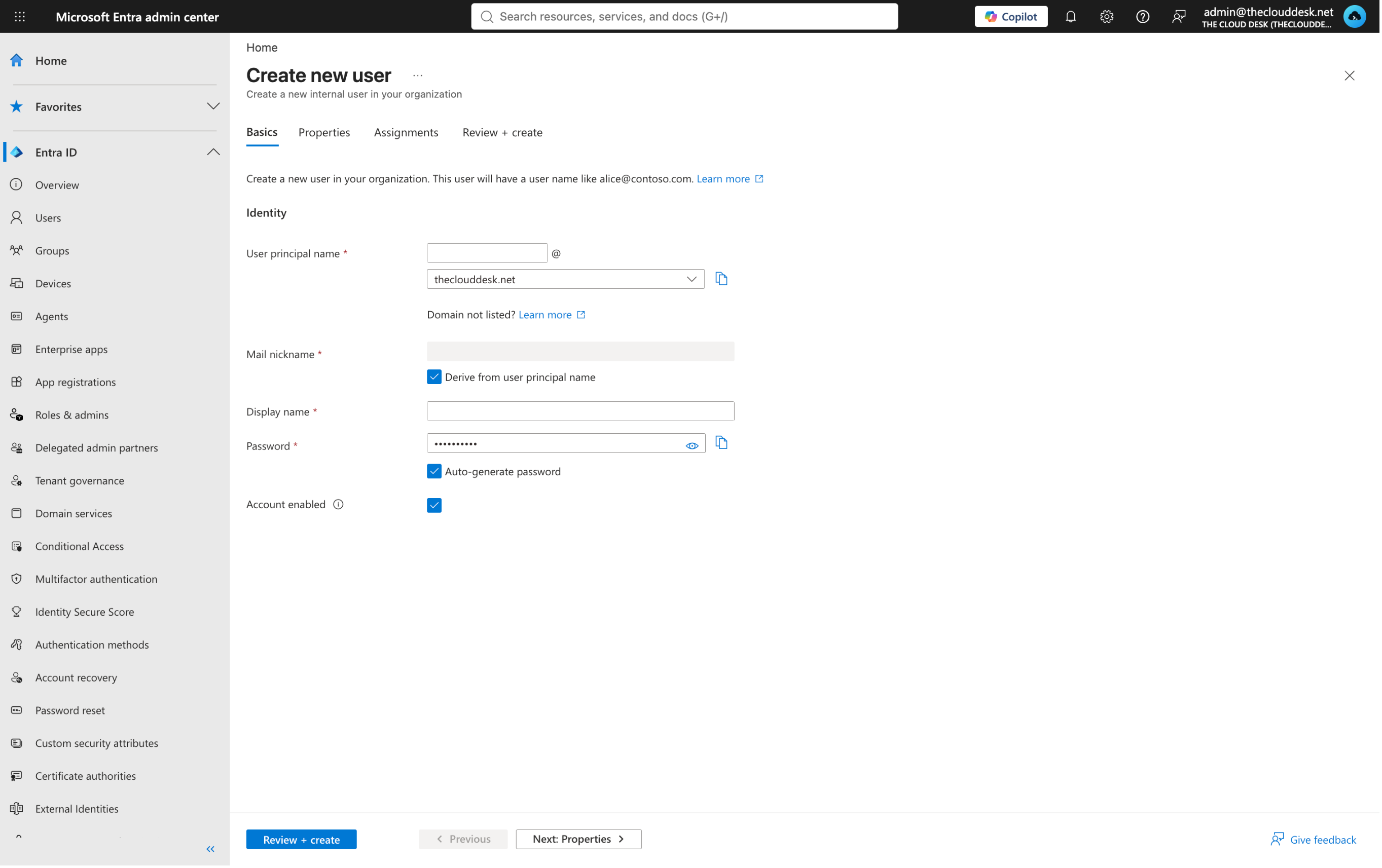
Basics
User principal name
This is the sign-in identity, and it is the field most often set carelessly. It has two parts either side of the @: a prefix you type, and a domain you pick from a dropdown. The dropdown only offers domains that are already verified in your tenant. A brand new tenant has exactly one — the onmicrosoft.com domain it was given when the tenant was created. Once you add and verify your own domain, it appears in that list and becomes the sensible choice.
The UPN is not the same thing as the email address. The UPN is an identity — it is what authentication checks. The email address is a mailbox property. They are usually set to the same string because that is easier for everybody to remember, but nothing forces it, and in organisations that have been through a rename or a merger they routinely differ. If a user tells you "my email works but I cannot sign in", this distinction is usually where the answer lives.
Mail nickname
The alias part of the mailbox address. The form offers a checkbox to derive it from the user principal name, which is what you normally want. Set it by hand only when the mail alias genuinely needs to differ from the sign-in prefix.
Display name
The name that appears in the address book, in Teams, on meeting invitations and in the access reviews you will run later. It is worth agreeing a format across the organisation and sticking to it — "Liam Chen" everywhere, not "Chen, Liam" for half the company. Consistency here is what makes people findable.
Password
Two choices. Auto-generate password has Entra create one and shows it to you once, so you can pass it to the person through whatever channel you use. Let me create the password lets you set an initial value yourself. Either way it is an initial password — by default the user is asked to change it at first sign-in.
Account enabled
Ticked by default. Clear it to create the account in a blocked state — useful when you are provisioning somebody a week before they start.
Properties
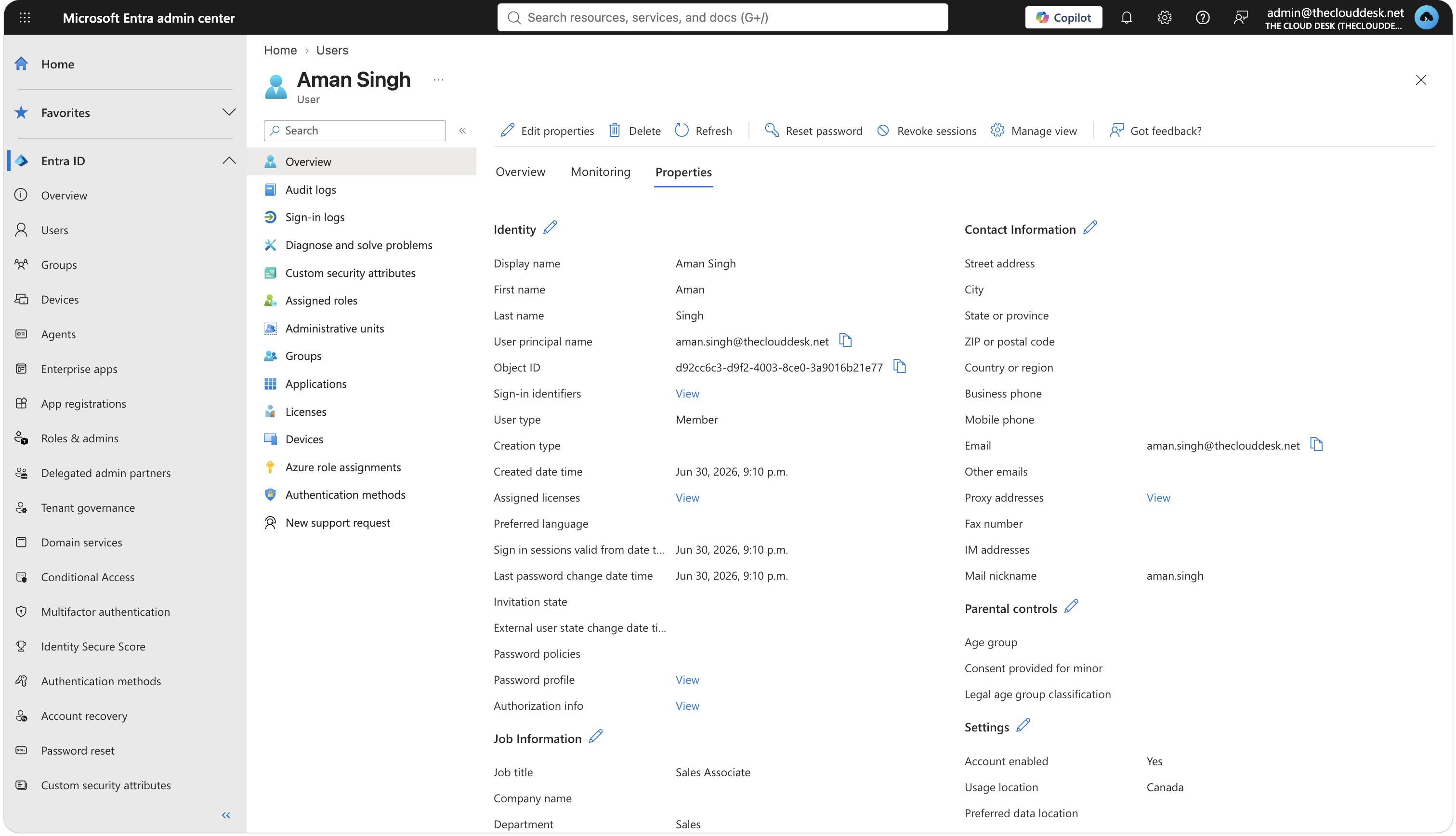
Sales, which is exactly what the dynamic rule in section 11 reads.This tab is optional, which is exactly why it gets skipped and why two of its fields cause trouble later.
Job title and Department
These look like decoration. They are not. They are ordinary directory attributes, which means a dynamic group can read them. A rule like user.department -eq "Sales" only works if somebody actually filled in the department. Treat these fields as the input data for your group automation — section 11 is where they get used.
Usage location
A licence cannot be assigned to a user who has no usage location set. Microsoft requires it because some services are not available in every country, so the licence assignment is checked against it. The error you get when it is missing does not say this clearly, and it is a classic first-week-of-the-job puzzle. Set it at creation and the problem never appears.
The rest
First name, last name, employee ID, employee type, company name, manager, office location, address fields, contact numbers. All of them are attributes you can filter on, report on, and write dynamic rules against. Fill in what your organisation actually uses; leave the rest.
Assignments
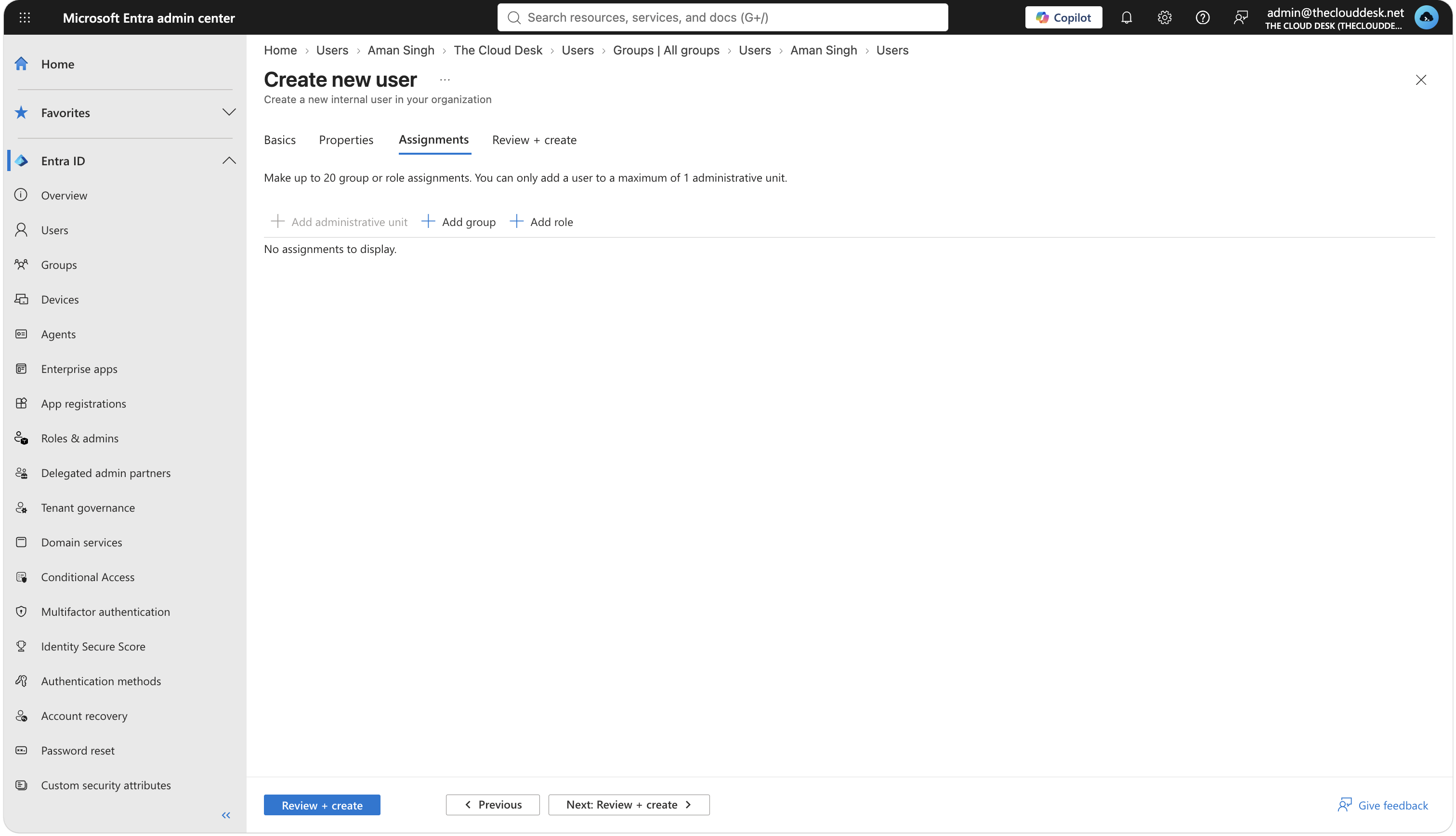
This tab lets you drop the new user straight into groups and directory roles as part of creation. It is a convenience, and for a single new starter it is a reasonable one. In practice most organisations leave it empty and let group membership be driven by rules instead — the pattern section 11 describes.
Review + create
A summary of everything you set, and the commit button. Nothing exists in the directory until you press it.
04Domains and the UPN suffix
Because the UPN domain has to come from a verified domain, adding your own domain is normally one of the first things done in a new tenant.
Portal pathEntra ID → Domain names → Add custom domain
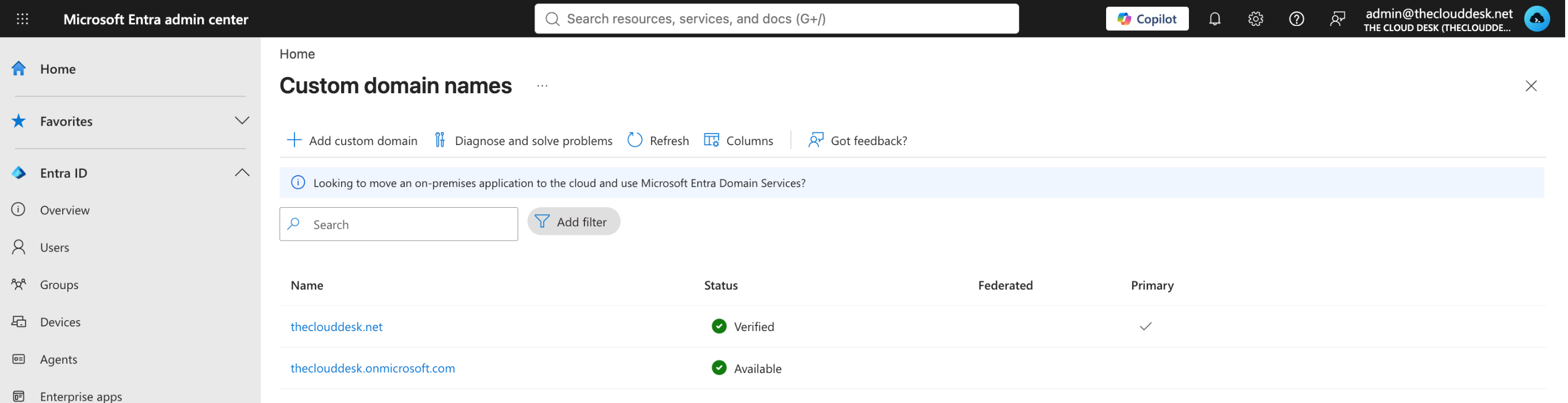
onmicrosoft.com domain sits underneath it and cannot be removed.The process is: add the domain name, Entra gives you a DNS record (usually a TXT record), you create that record at your DNS host, then come back and select Verify. Creating the record proves you control the domain. Once verified, the domain appears in the UPN dropdown and can be set as the primary domain, which makes it the default choice on new accounts.
The domain pre-selected when you create a new user. Setting it does not remove the onmicrosoft.com domain — that one can never be deleted, and it remains a valid sign-in suffix. It just stops being the default.
05Creating users in bulk
Nobody onboards forty people through the form in section 3. For that there are bulk operations, which are CSV-driven.
Portal pathUsers → All users → Bulk operations
The dropdown holds three operations, all currently marked Preview. They follow the same shape — download a template, fill it in, upload it, read the result:
| Operation | What it does |
|---|---|
| Bulk create | Creates internal user accounts from a CSV. |
| Bulk invite | Sends guest invitations to a list of external email addresses. |
| Bulk delete | Soft-deletes a list of users by UPN. |
Two related actions sit outside that menu. Download users is its own button on the same command bar and exports the current list to CSV — useful as an audit snapshot, or as a source list when you need to script a change. Bulk restore lives on the Deleted users screen instead, since that is where the objects it acts on are.
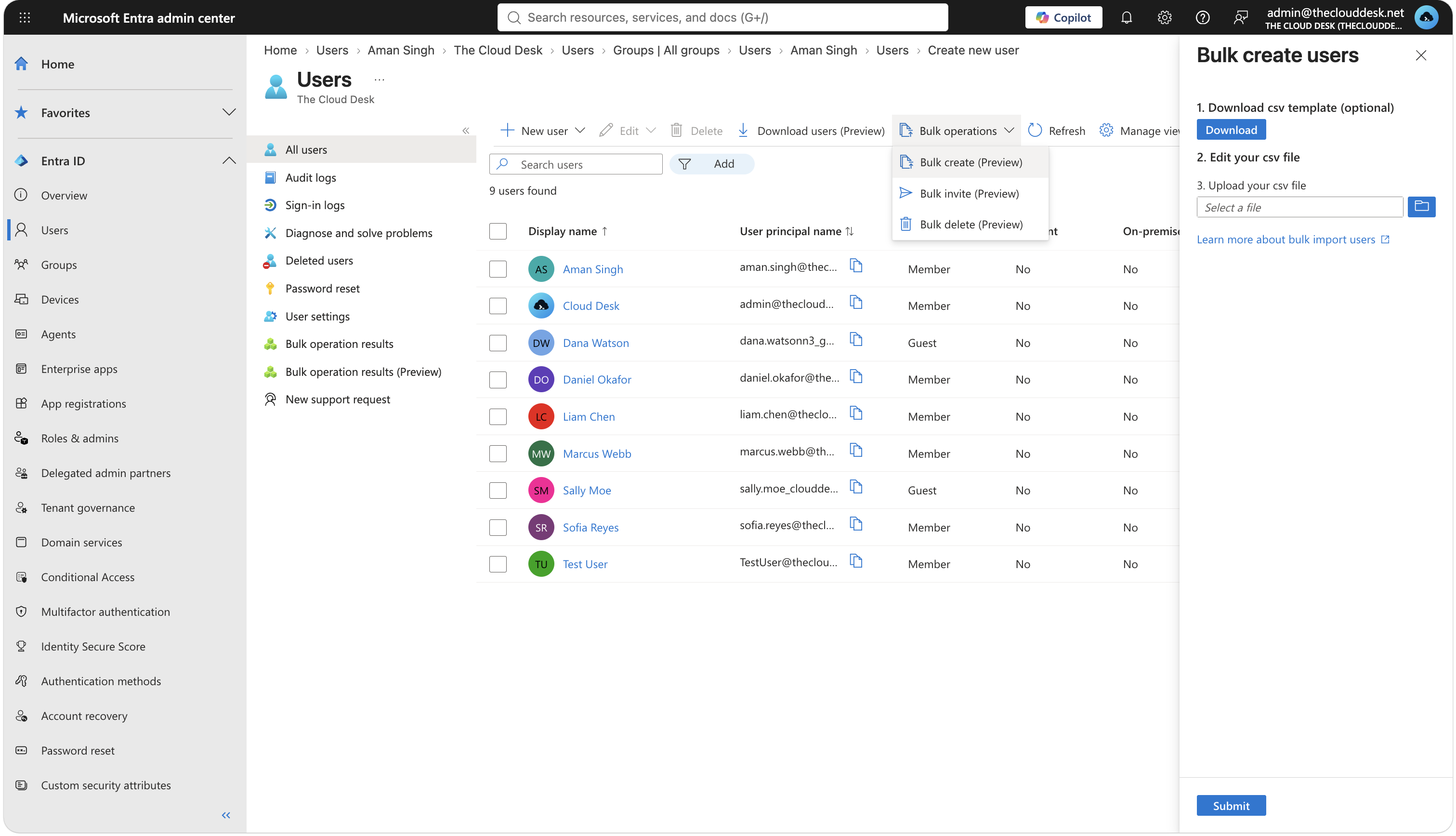
The CSV template
The panel marks the template download as optional. Treat it as required — the format is strict and the upload rejects anything that does not match it. The file you get has a particular structure:
- Row 1 — a version marker. Leave it alone.
- Row 2 — the column headers, with the required ones marked. Leave these alone too.
- Row 3 — an example row showing the expected format. Delete this row.
- Row 4 onward — your actual users, one per row.
The required columns for a bulk create are the name, the user principal name, the initial password, and whether sign-in is blocked. The template also carries optional columns — job title, department, usage location and the rest — and filling those in during the import is far less work than editing each user afterwards.
The example row left in. You import a fictional person into a real directory and then have to find and delete them.
An unverified domain in a UPN. If the suffix is not a domain verified in the tenant, those rows fail. If every row uses it, the whole import fails.
Spreadsheet reformatting. Opening the template in Excel and saving it can change encoding, strip leading zeros or alter delimiters, and the upload then rejects the file. Save explicitly as CSV and, if an import fails for no visible reason, this is the first thing to suspect.
Reading the result
The portal checks the file when you upload it and refuses it outright if the format is wrong. Once you submit, the job runs in the background, so the user list does not populate instantly — give it a moment and refresh.
Portal pathUsers → Bulk operation results
This screen is the history of every bulk job: what ran, when, by whom, and the per-row outcome. When somebody says "the import did not work", this is where the answer is.
06External users
Not every identity you need to manage is an employee. Contractors, vendors, auditors and partners need access to something, usually something narrow. There are three ways to handle that and only one of them is correct.
- Creating them a full internal account — gives an outsider an identity in your directory, usually a licence, and an account you now have to manage and eventually remember to disable.
- Sharing an existing login — destroys any ability to tell who did what, and the password keeps working after the person leaves.
- Inviting them as an external user — correct.
Microsoft Entra B2B lets you invite a person from outside your tenant and give them access to your resources while they keep using their own identity and their own credentials. Their password, their multifactor authentication and their account lifecycle all stay with their home organisation. You get a guest object in your directory to attach access to, and nothing else.
Users → All users → New user → Invite external user
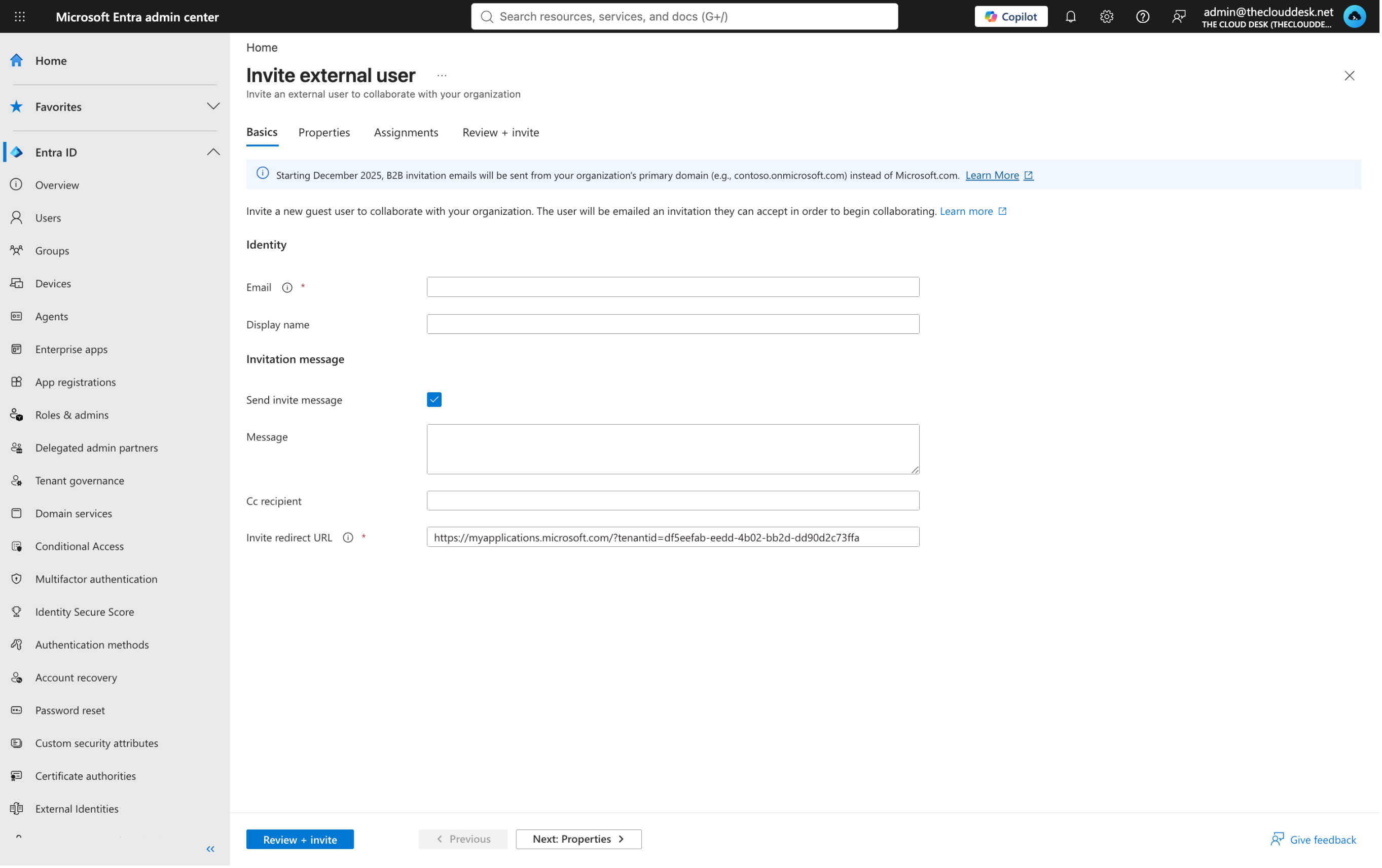
You enter their email address, optionally add a message, and Entra sends an invitation. They accept it using their existing Microsoft account or work account. From that point they appear in your directory like any other object.
How to recognise a guest
Two signals. The User type column reads Guest rather than Member. And the UPN is rewritten into a distinctive form — their original address, then a tag that marks them as a guest, then your tenant's domain:
dana.watson_contoso.com#EXT#@theclouddesk.onmicrosoft.comYou never type this. Entra builds it when the invitation is redeemed. Its job is to guarantee the address is unique inside your directory and to make a guest obvious at a glance in any list.
What changes about them
Guests are, by default, more restricted than members — they can see less of the directory. The important point for this note is what does not change: once a guest is in your directory, you govern them with the same tools as everyone else. They can be put in groups, have access granted and revoked, be included in Conditional Access policies and be pulled into access reviews. They are ordinary directory objects with a different user type.
The settings that control what guests can see, who is allowed to invite them, and how their access is reviewed over time belong to External Identities, which is its own subject in a later video.
07Managing users you already have
Creating objects is the small half of the job. Most identity work is maintenance.
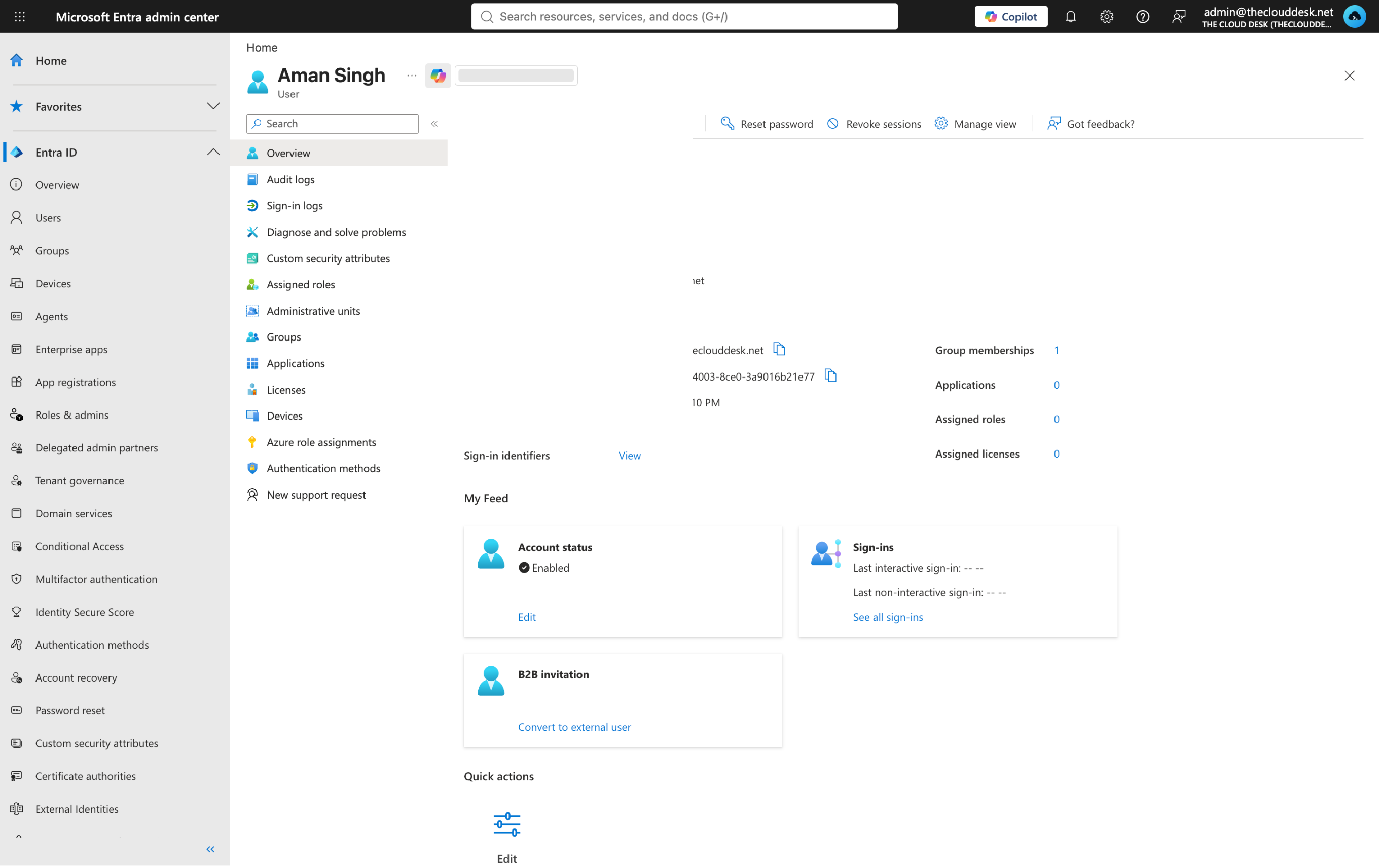
Editing one user
Select the user, then Edit properties. Every attribute from section 3 is available here, grouped into the same categories. Routine changes: a department after a transfer, a corrected surname, a usage location that was never set.
Editing many users
Bulk operations covers create, invite, delete and restore — there is no bulk attribute edit in the portal. To change one attribute across many people you either script it with Microsoft Graph PowerShell, or, far better, stop editing people one at a time and let group membership follow the attributes instead, which is section 11.
Password reset and blocking sign-in
From a user's page you can reset the password — which produces a temporary one the user must change — and you can block sign-in, which leaves the account and all its data intact but stops authentication immediately. Blocking is the correct first move when somebody leaves or an account looks compromised. It is reversible; deletion is less so.
Letting users reset their own passwords, rather than calling you, is self-service password reset. That is Day 2.
08Deleting and restoring
Deletion in Entra ID is forgiving, and knowing it is worth a great deal on a bad day.
When you delete a user, the object is not destroyed. It is moved to a deleted state and held for 30 days, during which it can be restored complete with its group memberships, licences, roles and object ID. After 30 days it is purged automatically and cannot be recovered.
Users → Deleted users
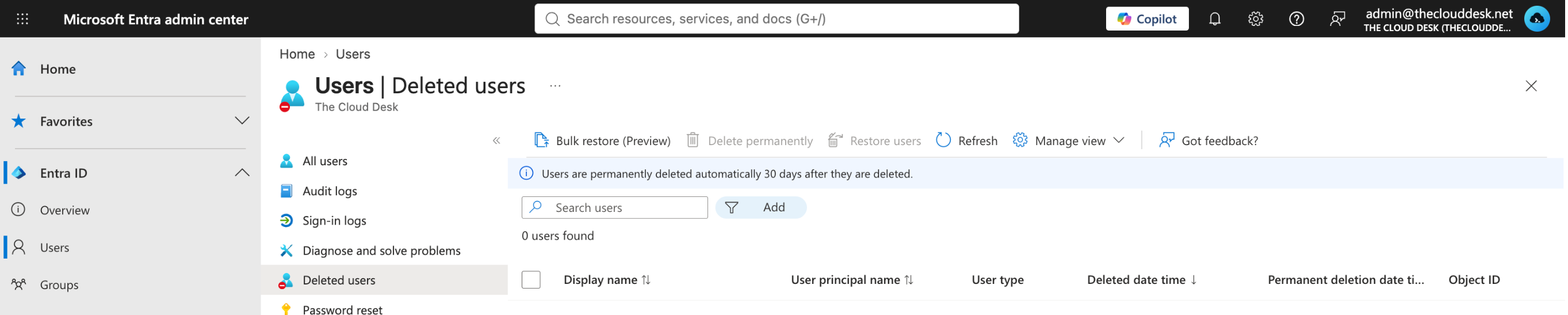
Restoring returns the account as it was — the same object ID, so anything that referenced it still resolves. This matters more than it sounds: a person who leaves and returns three weeks later does not need their access rebuilt from nothing, and a deletion made by mistake is an inconvenience rather than a disaster.
Delete permanently purges immediately and skips the waiting period. There is no undo.
09Groups: the idea
Everything so far has been about individual people. Almost no real access is managed that way.
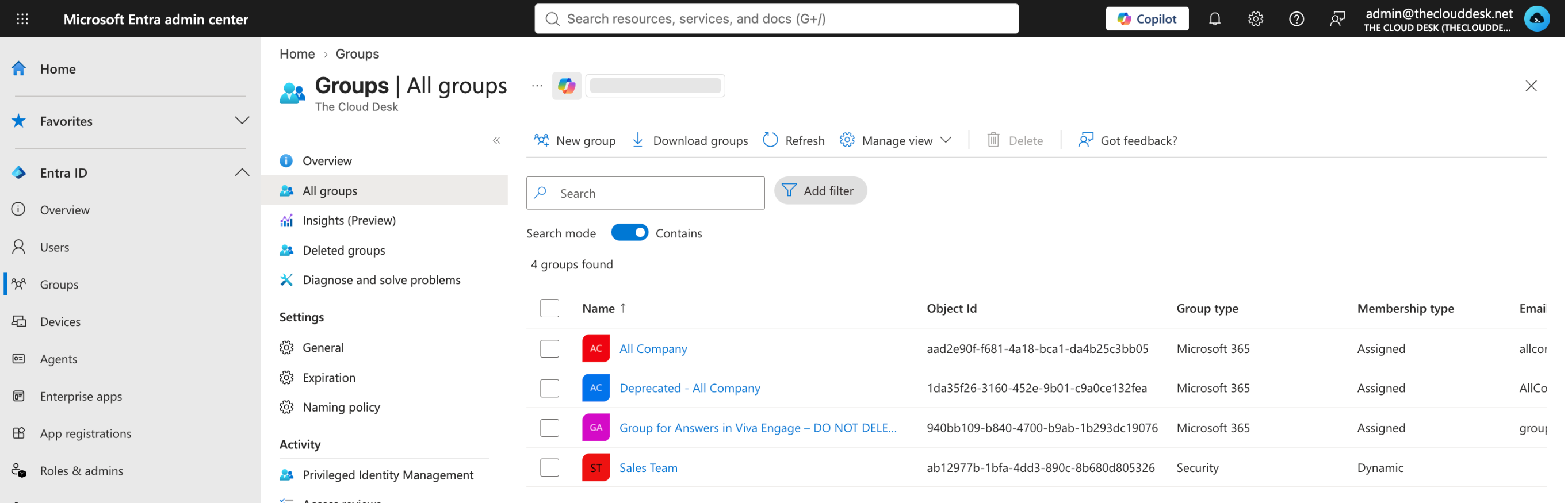
A group is a directory object that holds a collection of members. Its value is indirection: instead of granting something to forty people, you grant it to one group and manage who is in that group. The thing you granted then follows membership automatically.
Entra ID → Groups → All groups
10Group type: Security or Microsoft 365
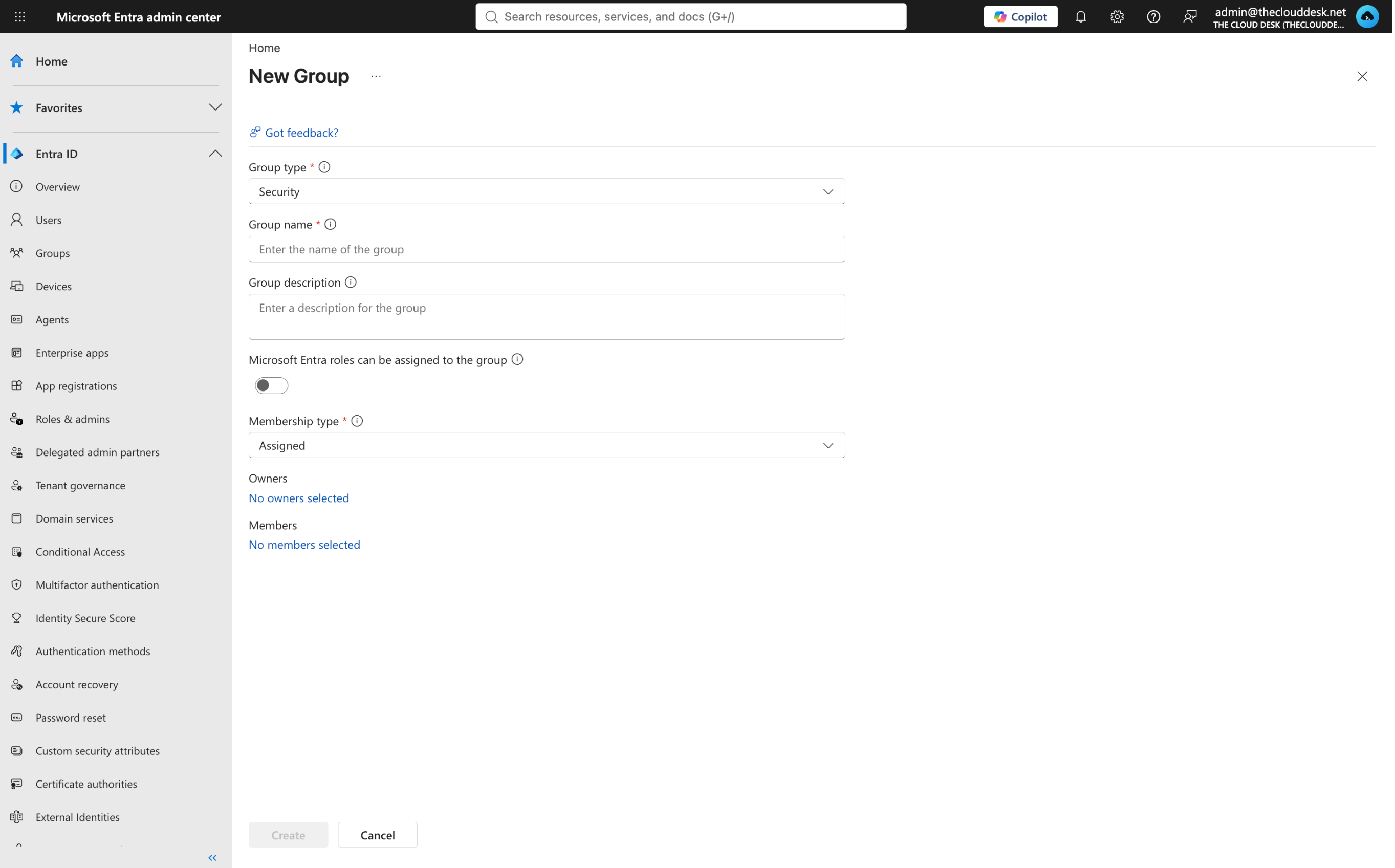
When you create a group the first choice is its type, and it is the choice worth slowing down for.
Portal pathGroups → All groups → New group
| Security group | Microsoft 365 group | |
|---|---|---|
| Purpose | Granting access | Collaboration |
| What it brings | Nothing extra — it is a membership list | A shared mailbox, a SharePoint site, a Teams team, a shared calendar, a planner |
| Typical use | Permissions, group-based licensing, Conditional Access targeting, Azure role assignments | Giving a team somewhere to work together |
| Can contain | Users, devices, service principals, other groups | Users only |
| Has an email address | No — mail-enabled security groups exist, but they are created in Exchange | Yes, always |
How to decide
Ask what the group is for, and answer in one sentence. If the answer is "to give these people access to something", it is a security group. If the answer is "to give this team a place to work together", it is a Microsoft 365 group.
You cannot cleanly convert a group from one type to the other. Choosing wrong means creating the right group, moving the members, re-pointing whatever referenced the old one, and deleting it. Five seconds of thought at creation saves that.
Two older group types also exist — distribution lists and mail-enabled security groups. You will see them in tenants that have been around a while, and they are administered through Exchange rather than here. They are not part of the AZ-104 objectives; recognising the names is enough.
Role-assignable groups
The New group panel also offers Microsoft Entra roles can be assigned to the group. Ticking it lets you assign a directory role to the group rather than to individuals. It requires Entra ID P1, and it cannot be changed after the group is created. Leave it off unless you specifically intend to manage admin roles through that group.
11Membership type: assigned or dynamic
The second choice on the same panel decides how the group gets its members.
| Type | How membership works | Best for |
|---|---|---|
| Assigned | You add and remove members by hand. | Small, stable groups, and anything where membership is a deliberate decision rather than a fact about the person. |
| Dynamic User | You write a rule against user attributes. Entra evaluates it and keeps the membership in step, continuously. | Anything that tracks an attribute you already maintain — department, job title, country, company. |
| Dynamic Device | The same idea, evaluated against device attributes instead of user attributes. | Targeting device configuration and compliance policies. |
Dynamic membership requires Microsoft Entra ID P1, and the licence requirement counts users: every unique user who is a member of any dynamic group needs one. Device-based dynamic groups do not carry a per-device licence requirement.
How a rule is built
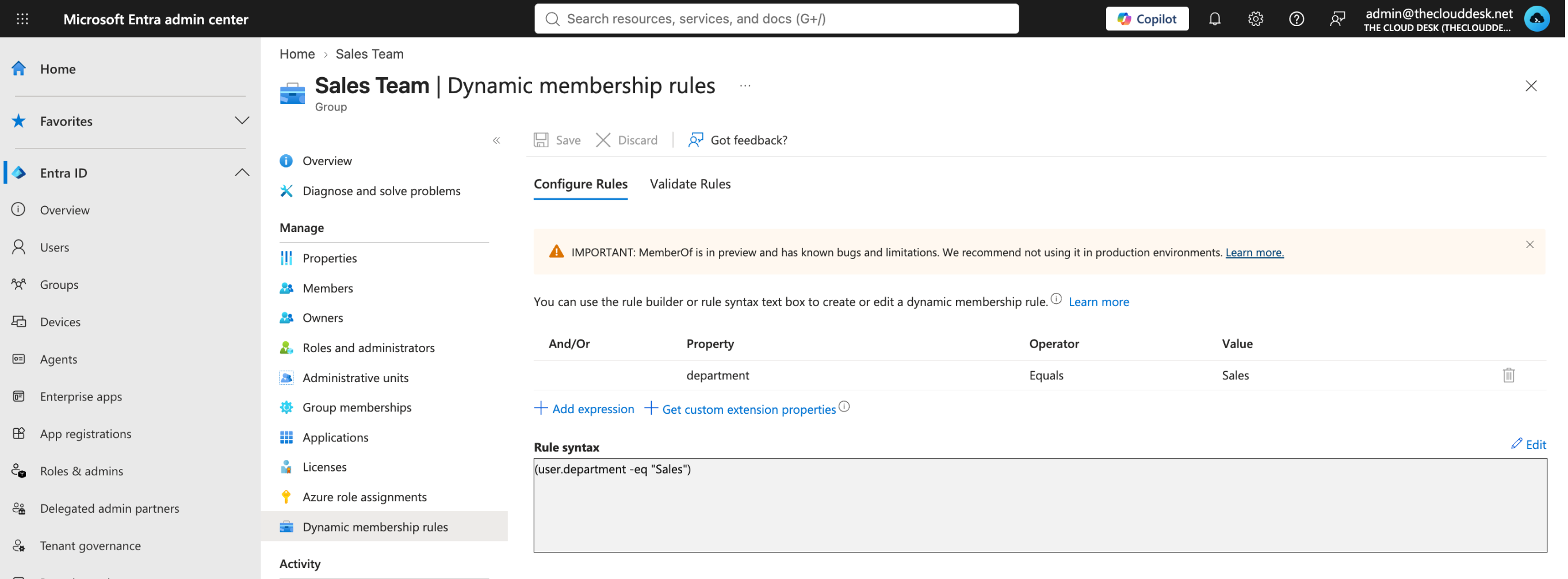
A membership rule is an expression that is evaluated against each user and returns true or false. True means they are a member. The simplest form is three parts — a property, an operator, and a value:
user.department -eq "Sales"Read it as: the user's department attribute equals the string "Sales". Note the shape of it — the property is always prefixed with the object it belongs to (user. or device.), operators are written with a leading hyphen, and string values are quoted.
Properties you can use
Most user attributes are available, including the ones from section 3: department, jobTitle, displayName, city, country, companyName, usageLocation, userPrincipalName, employeeId, mail, userType, accountEnabled. This is the practical reason section 3 pushed you to fill in the Properties tab.
Operators
| Operator | Meaning |
|---|---|
-eq / -ne | Equals / does not equal |
-startsWith / -notStartsWith | Begins with / does not begin with |
-endsWith / -notEndsWith | Ends with / does not end with |
-contains / -notContains | Partial string match |
-match / -notMatch | Regular expression match |
-in / -notIn | Matches any value in a list, written in square brackets |
Expressions are joined with -and, -or and -not, and parentheses force the order when the default precedence is not what you want:
(user.department -eq "Sales") -or (user.department -eq "Marketing")

user.usageLocation -eq "CA" -and (user.department -eq "Sales" -or user.department -eq "Marketing")
A null check uses the bare word null, unquoted — user.department -eq null finds everyone whose department was never filled in, which is a genuinely useful audit query.
The rule builder and the text box
The portal gives you two ways to write the rule. The rule builder is the row of dropdowns, and it handles up to five expressions. It exists only for user-based rules; device rules must be typed. The text box takes the raw syntax and is required for anything the builder cannot express — more than five expressions, -contains, forced operator precedence, rules about a manager's direct reports, or expressions over multi-value properties. The total rule body cannot exceed 3,072 characters.
Validating before you commit
The rule editor includes a validation feature: pick a few real users and it tells you whether each one would match. Use it every time. It takes seconds and it catches the mistakes that are otherwise invisible — a rule that matches nobody, a rule that matches everybody, or an attribute that turns out to be spelled inconsistently across your users. String comparisons themselves are not case sensitive, so "sales" and "Sales" both match.
What happens afterwards
The rule is not a one-off filter. It is standing policy. From the moment it is saved, a new starter whose department is set to Sales becomes a member without anybody doing anything, and somebody who transfers out stops being a member the same way. Changes are processed in the background rather than instantly, so allow a few minutes rather than expecting an immediate result.
This one feature removes a large share of the repetitive membership work that otherwise fills a help desk's week — but only if the attributes it reads are actually maintained. A dynamic group is exactly as good as the data underneath it.
12Owners, members and group settings
Opening any group gives you the screens where its day-to-day management happens.
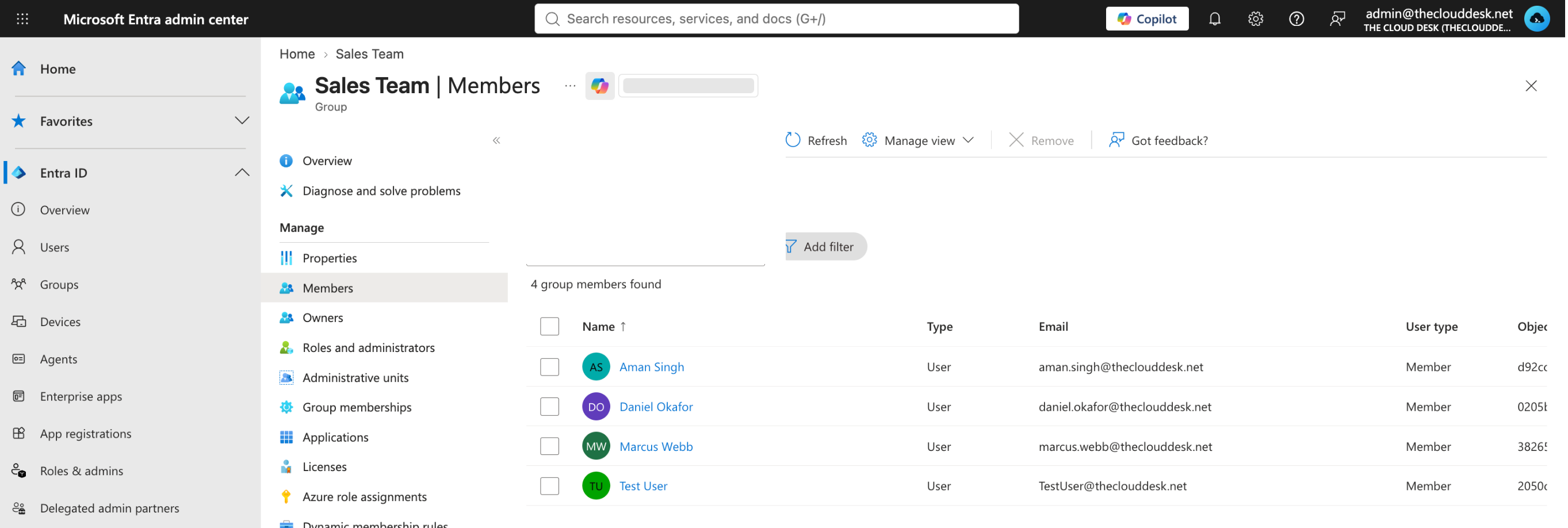
- Members — who is in the group. For an assigned group you add and remove here; for a dynamic group this list is read-only output from the rule.
- Owners — who is allowed to manage the group without being a directory administrator. Delegating ownership to the person who actually runs the team is good practice; it keeps routine membership requests off your desk.
- Properties — name, description, membership type, and the group's object ID.
- Deleted groups — Microsoft 365 groups and cloud security groups are held for 30 days after deletion and can be restored from Groups → Deleted groups. Distribution groups are not covered, and restore for security groups is still in preview.
13Why the group is the unit that matters
This is the reason the series starts here rather than somewhere more exciting. A group built properly becomes the attachment point for nearly everything that follows:
- Licensing. Assign a licence to a group and every member inherits it; remove someone from the group and the licence is reclaimed. That is group-based licensing, and it is Day 2.
- Conditional Access. Policies are targeted at users and groups. Point a policy at one group and you have applied a sign-in requirement to an entire department in a single move.
- Azure role assignments. Grant an Azure role to a group and every member gets that access to the resources in scope. Roles, scopes and how to read an access assignment are their own video.
- Application access. Assign an enterprise application to a group and membership decides who can use it.
Each of those is configured once, against the group. The membership underneath can then change every week without anybody revisiting the configuration. That is the whole argument for spending time on groups.
14Least privilege and admin roles
The same thinking applies to administrative access, and it is where the stakes are highest.
When a colleague needs to reset passwords and unlock accounts, the tempting move is to make them a Global Administrator, because it definitely works. It also hands them control of the entire tenant — every user, every policy, every setting, including the ability to lock you out.
Grant the smallest set of permissions that lets somebody do their job, and nothing beyond it. Applied to identity, it means picking the narrowest built-in role that covers the task rather than defaulting to the most powerful one.
Entra ID ships with a long list of scoped built-in roles. For the password-reset example, Helpdesk Administrator grants exactly that and nothing more. User Administrator covers creating and managing users and groups. License Administrator covers licence assignment alone.
Portal pathEntra ID → Roles & admins
Directory roles — which govern Entra ID itself — are a different system from Azure RBAC roles, which govern Azure resources like virtual machines and storage accounts. The distinction matters on the exam and it matters in practice. Both get proper treatment in a later video.
15Quick reference
The two group decisions
| Question | Answer | Choose |
|---|---|---|
| What is this group for? | Giving people access to something | Security group |
| Giving a team a place to work together | Microsoft 365 group | |
| How should membership be maintained? | By hand, deliberately | Assigned |
| From an attribute already maintained | Dynamic User (needs P1) |
Fields that cause problems if skipped
| Field | What breaks without it |
|---|---|
| Usage location | Licences cannot be assigned to the user. |
| Department / Job title | Dynamic membership rules that read them match nobody. |
| Display name consistency | People become hard to find in address books and access reviews. |
Numbers worth remembering
- 30 days — soft-delete retention for deleted users, and for Microsoft 365 and cloud security groups.
- 5 expressions — the rule builder's limit before you must use the text box.
- 3,072 characters — the maximum length of a dynamic membership rule.
- P1 — the licence tier required for dynamic groups and role-assignable groups.
16How this maps to AZ-104
In the exam's skills outline (skills measured as of 17 April 2026), this note sits inside Manage Azure identities and governance, which is 20–25% of the exam, under the objective Manage Microsoft Entra users and groups. That objective lists five items:
| Objective item | Covered |
|---|---|
| Create users and groups | Sections 3, 5 and 10–11 |
| Manage user and group properties | Sections 2, 7, 8 and 12 |
| Manage external users | Section 6 — the invitation and guest model. The External Identities settings that govern them come later in the series. |
| Manage licenses in Microsoft Entra ID | Day 2 |
| Configure self-service password reset (SSPR) | Day 2 |
If you can create a user and explain every field on the form, run a bulk import and read the failures, invite a guest and say what #EXT# means, and choose the right group type and membership type with a reason for each, you have this objective.